
When you see a warning pop-up saying "eqshengd was not opened because it contains malware", you can choose Method 1 (No Code) or Method 2 (Using Terminal) to fix it. 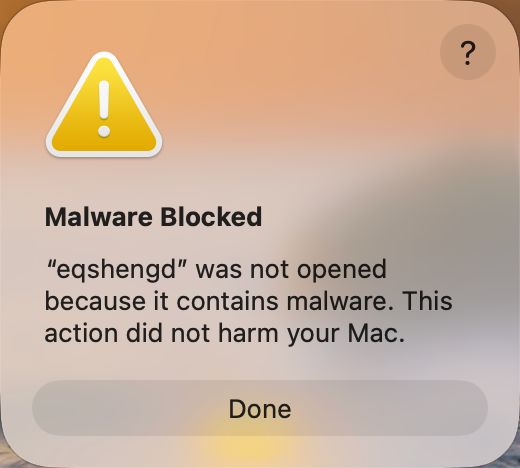
Method 1: Beginner-Friendly & No Code (Using Activity Monitor)
Best for students who prefer a graphical interface without typing any commands.
Step 1: Open Activity Monitor (Mac Task Manager)
- Press Command + Spacebar on your keyboard to open Spotlight Search.
- Type Activity Monitor and press Enter to open it.
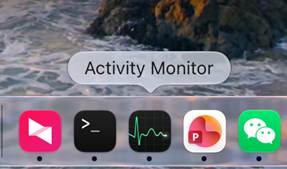
Tip: You can keep this pop-up open until the final step.
Step 2: Search for "eqshengd"
- Look at the top-right corner of the Activity Monitor window.
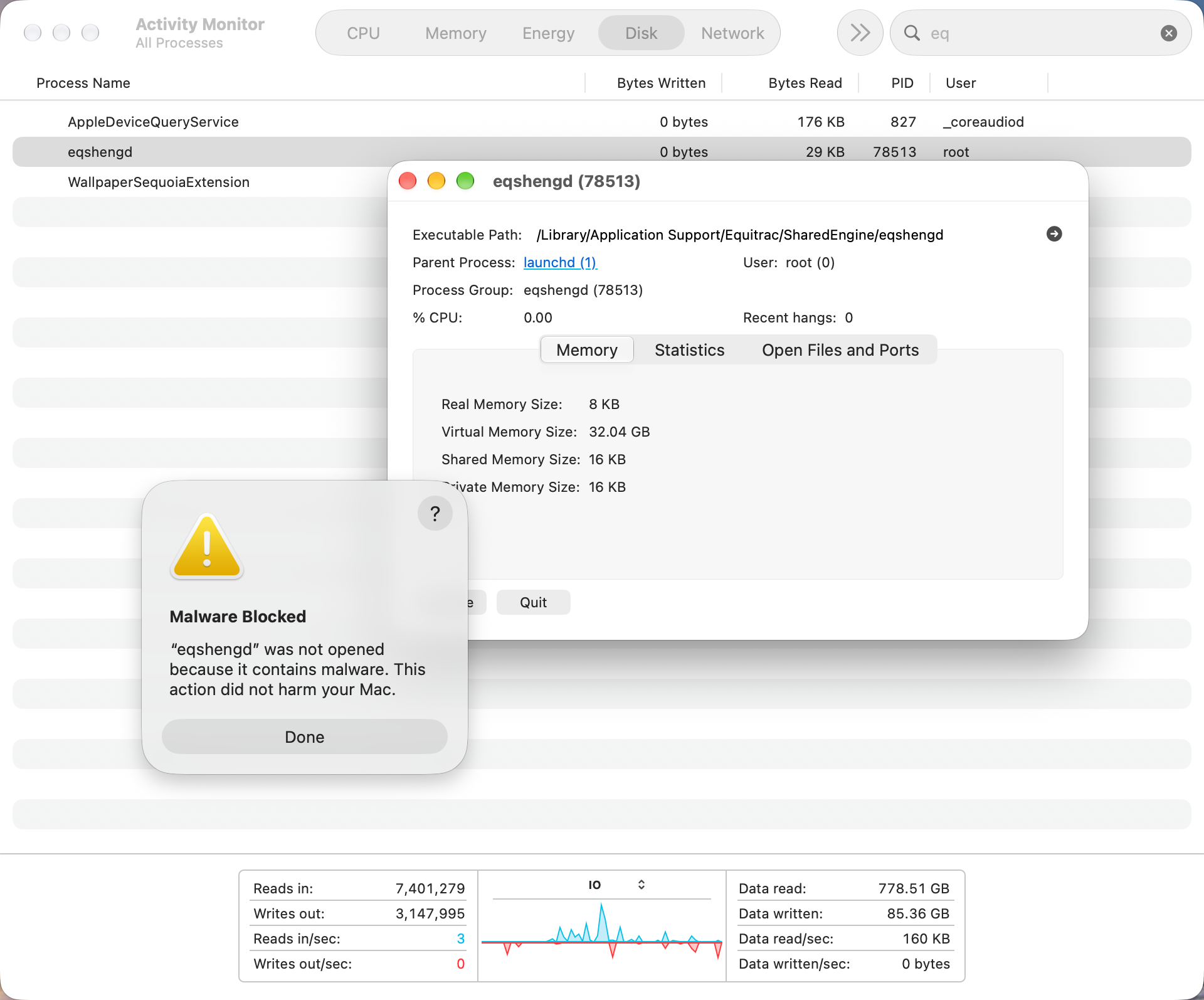
- Type eq or eqshengd into the search bar.
- Click on eqshengd in the list to select it[cite: 3].
Step 3: Find the File Location
- Double-click on eqshengd in the list to open its details window.
- Look for Executable Path, which shows the exact folder where the file is saved: /Library/Application Support/Equitrac/SharedEngine/eqshengd[cite: 4].
- Tip: You can click the small arrow icon next to the path to automatically open this folder.
Step 4: Drag the File to Trash
- In the folder that opens, you will see the black file named eqshengd.
- Use your mouse to drag the eqshengd file directly into the Trash icon on your bottom dock.
- If a pop-up appears asking to confirm, click Delete, then right-click your Trash and select Empty Trash.
Method 2: Quick Command Line (Using Terminal)
Best for a quick fix using automated commands.
Step 1: Open Terminal
- Press the Command + Spacebar keys together on your keyboard to open Spotlight Search.
- Type Terminal and press Enter (open the black icon shown below).
Step 2: Run Cleanup Commands
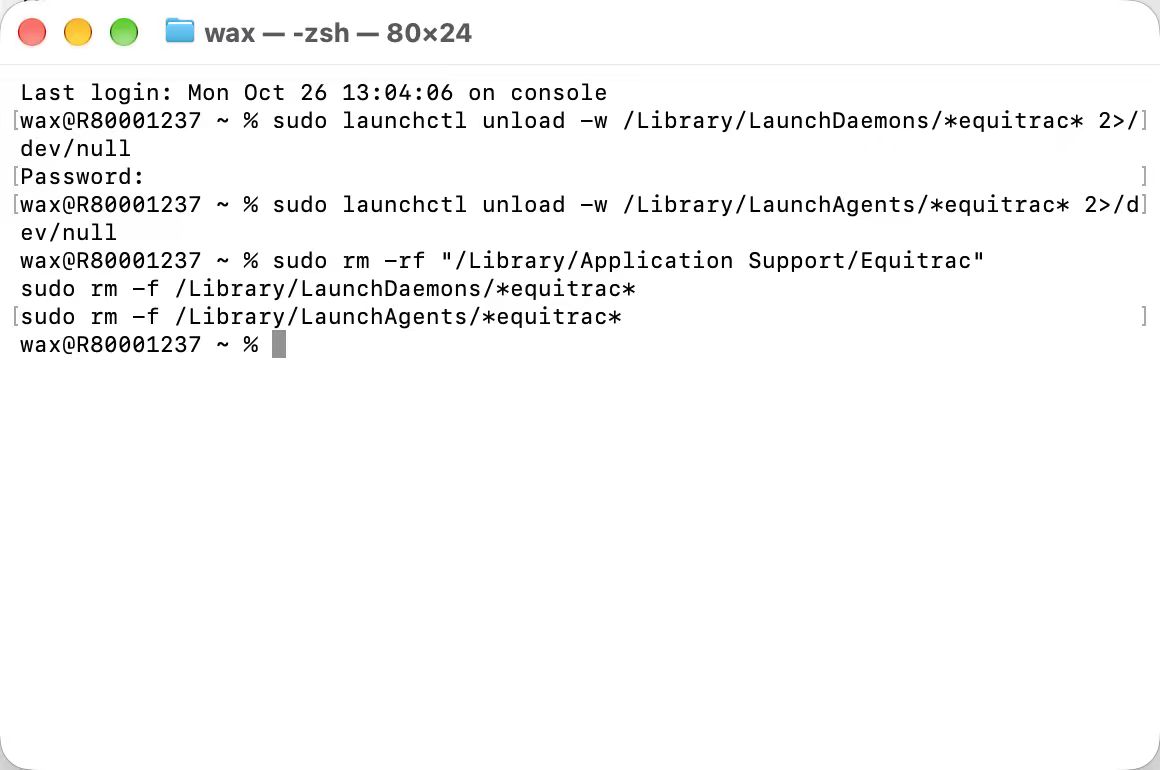
- Copy and paste all the text lines below into the Terminal window at once, then press Enter on your keyboard:
sudo launchctl unload -w /Library/LaunchDaemons/*equitrac* 2>/dev/null
sudo launchctl unload -w /Library/LaunchAgents/*equitrac* 2>/dev/null
sudo rm -rf "/Library/Application Support/Equitrac"
sudo rm -f /Library/LaunchDaemons/*equitrac*
sudo rm -f /Library/LaunchAgents/*equitrac*
- Note: When you type your Mac password, no letters or stars will show on the screen. This is normal for security. Just type your password blindly and press Enter.
Step 3: Empty Trash
- Go to your Trash on the bottom dock, right-click it, and click Empty Trash to completely remove the old file.
✅ Done! The error pop-up will never bother you again.

