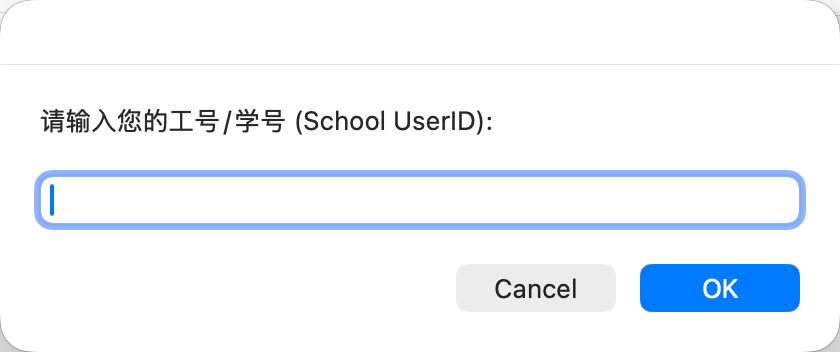
When setting up a new printer on a Mac, you might suddenly see a "Malware Blocked" pop-up warning. Don't panic! This is just macOS blocking an old, hidden background file (eqshengd) left over from an old printer program.
Follow these simple steps one by one to fix it and install your new printer.
? Step 1: Reset the Mac Printer Settings
- Click the Apple logo () in the top-left corner of your screen.
- Select System Settings (or System Preferences).
- On the left menu, click Printers & Scanners
- Right-click (or Control-click) anywhere in the printer list area and click Reset Printing System...
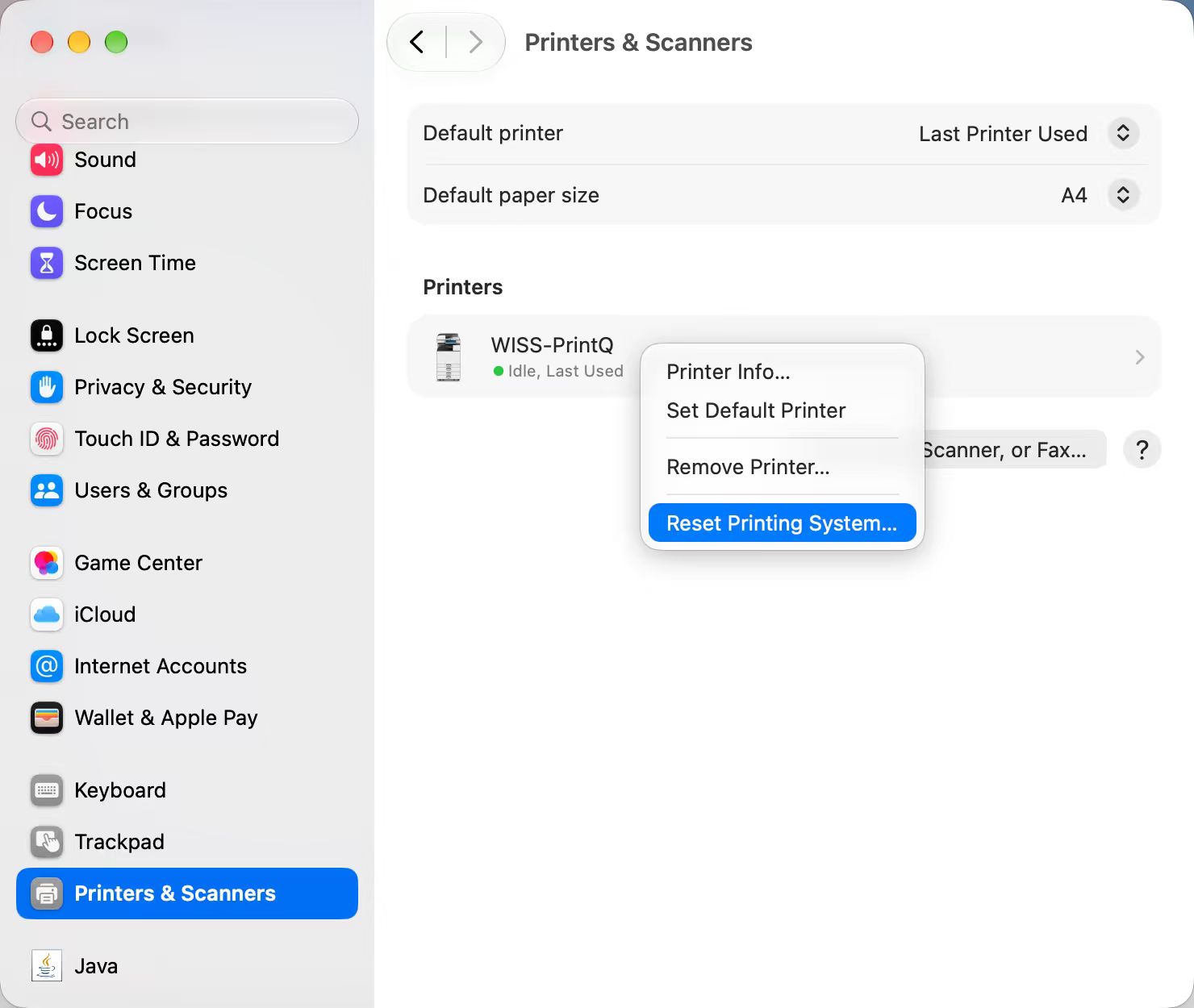
Visual Guide (Look at this menu):
? Step 2: Install the New Printer Driver
- Locate your downloaded new printer installer file on your computer. Oct12LPDPrinter1012.pkg
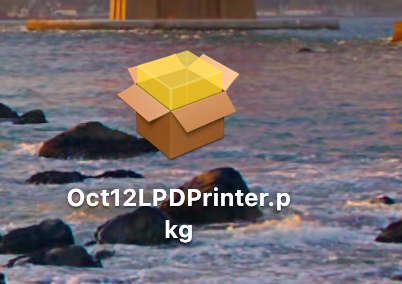
- Double-click the file to open it
- Click Continue and follow the simple on-screen instructions until the installation is complete
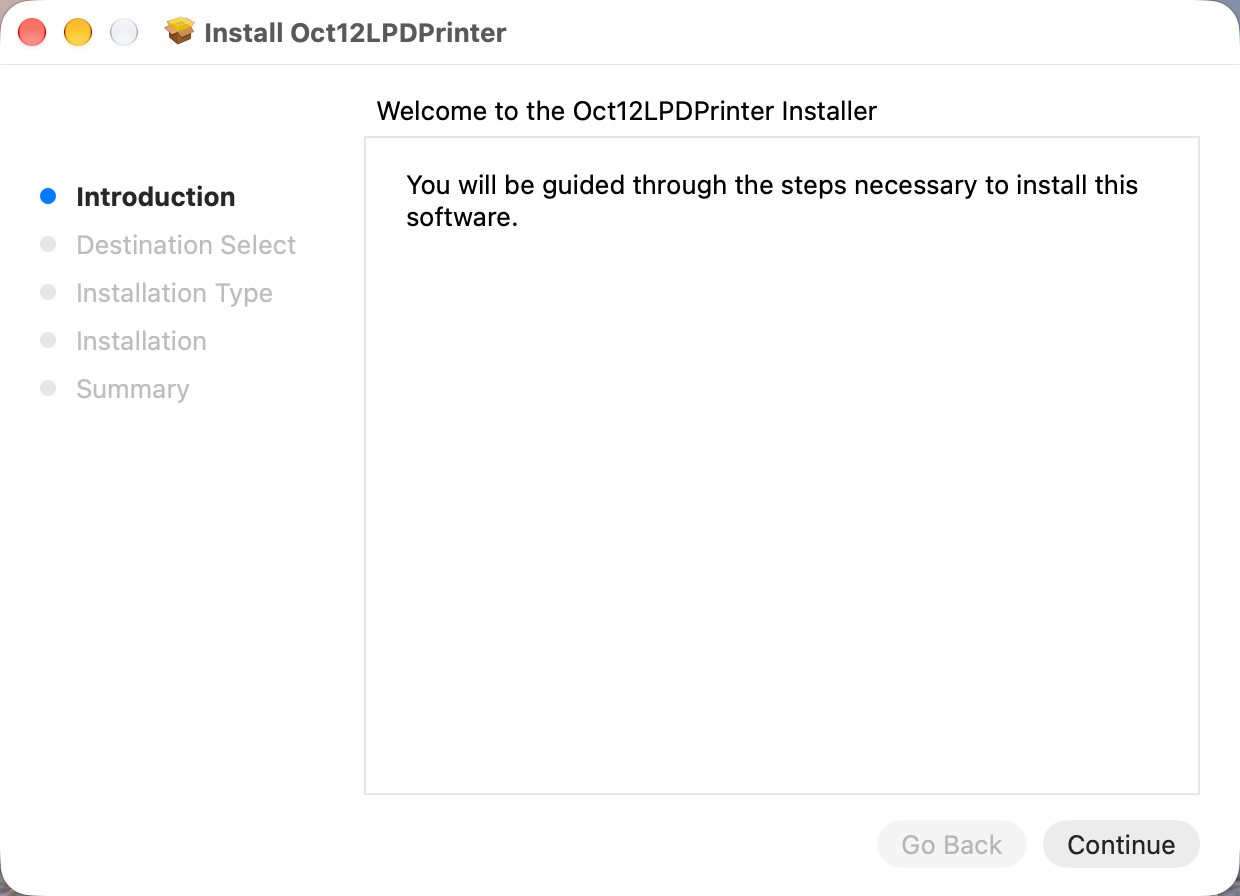
- Note: When entering your information, please enter only your school email ID (without@wiss.cn); a pop-up window will appear a second time for confirmation.